Debugging Basics
Debugging features, such as the Dev Menu, LogBox, and React Native DevTools are disabled in release (production) builds.
Opening the Dev Menu
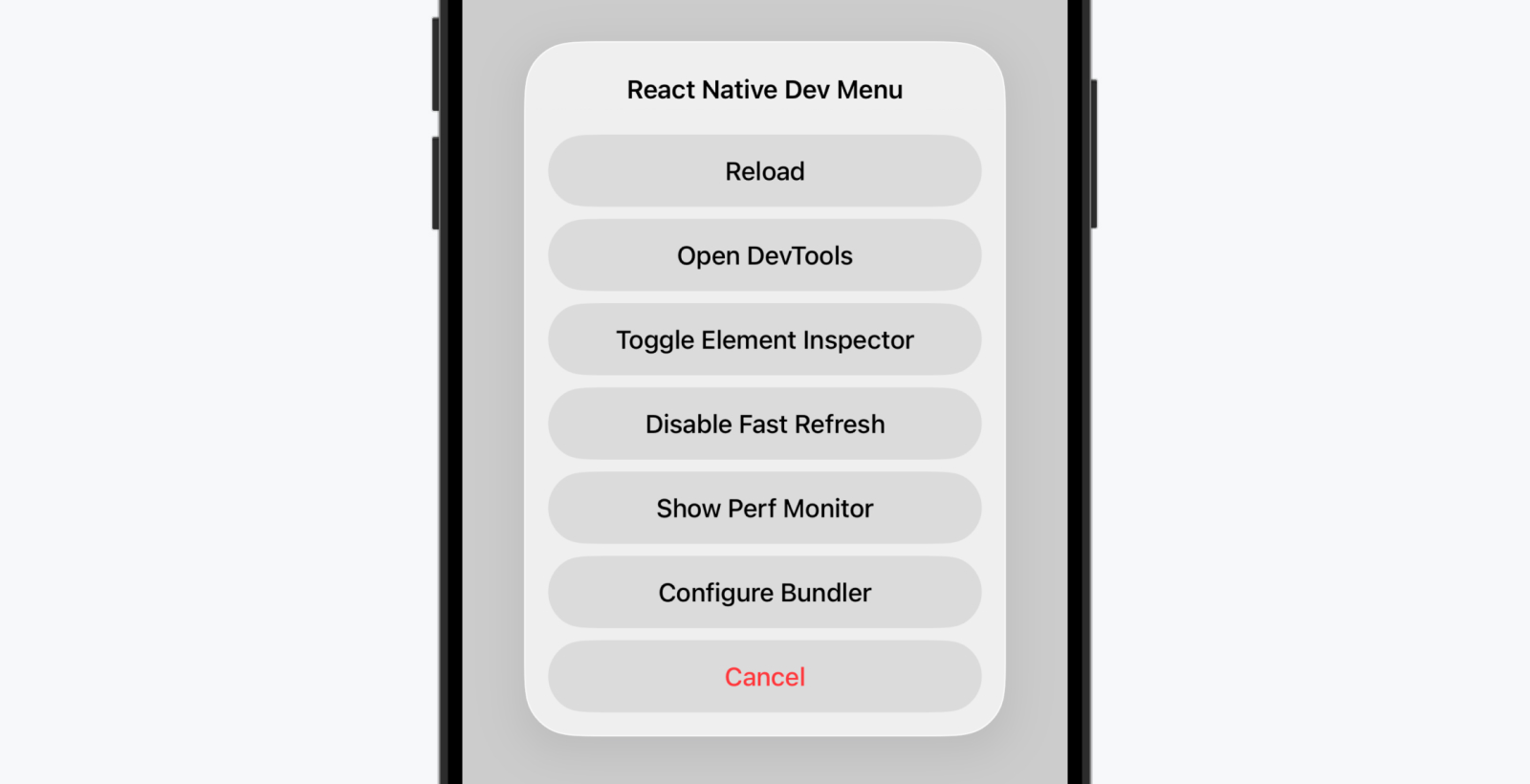
React Native provides an in-app developer menu providing access to debugging features. You can access the Dev Menu by shaking your device or via keyboard shortcuts:
- iOS Simulator: Ctrl + Cmd ⌘ + Z (or Device > Shake)
- Android emulators: Cmd ⌘ + M (macOS) or Ctrl + M (Windows and Linux)
Alternative (Android): adb shell input keyevent 82.
Opening DevTools
React Native DevTools is our built-in debugger for React Native. It allows you to inspect and understand how your JavaScript code is running, similar to a web browser.
To open DevTools, either:
- Select "Open DevTools" in the Dev Menu.
- Press j from the CLI.
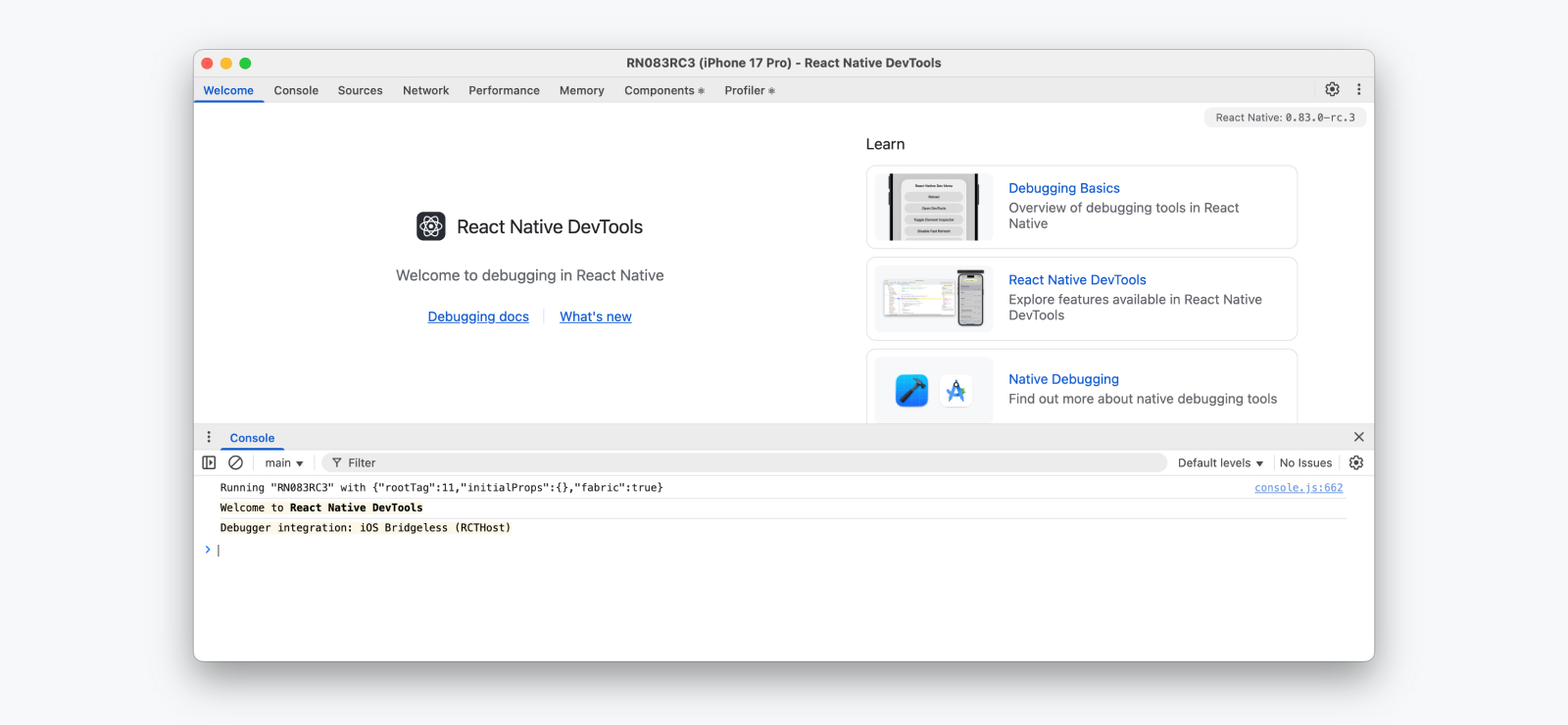
On first launch, DevTools will open to a welcome panel, along with an open console drawer where you can view logs and interact with the JavaScript runtime. From the top of the window, you can navigate to other panels, including the integrated React Components Inspector and Profiler.
Learn more in our React Native DevTools guide.
LogBox
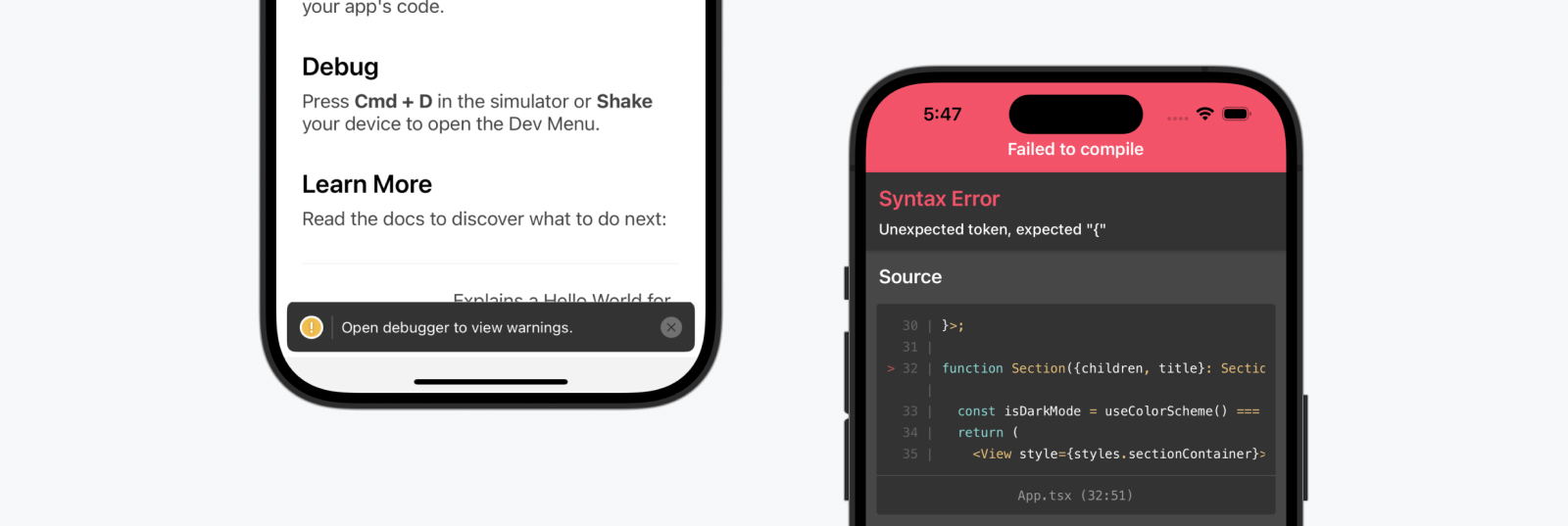
LogBox is an in-app tool that displays when warnings or errors are logged by your app.
Fatal Errors
When an unrecoverable error occurs, such as a JavaScript syntax error, LogBox will open with the location of the error. In this state, LogBox is not dismissable since your code cannot be executed. LogBox will automatically dismiss once the syntax error is fixed — either via Fast Refresh or after a manual reload.
Console Errors and Warnings
Console errors and warnings are displayed as on-screen notifications with a red or yellow badge.
- Errors will display with a notification count. Tap the notification to see an expanded view and to paginate through other logs.
- Warnings will display a notification banner without details, prompting you to open React Native DevTools.
When React Native DevTools is open, all errors except fatal errors will be hidden to LogBox. We recommend using the Console panel within React Native DevTools as a source of truth, due to various LogBox options which can hide or adjust the level of certain logs.
💡 Ignoring logs
LogBox can be configured via the LogBox API.
import {LogBox} from 'react-native';
Ignore all logs
LogBox notifications can be disabled using LogBox.ignoreAllLogs(). This can be useful in situations such as giving product demos.
LogBox.ignoreAllLogs();
Ignore specific logs
Notifications can be disabled on a per-log basis via LogBox.ignoreLogs(). This can be useful for noisy warnings or those that cannot be fixed, e.g. in a third-party dependency.
LogBox.ignoreLogs([
  // Exact message
  'Warning: componentWillReceiveProps has been renamed',

  // Substring or regex match
  /GraphQL error: .*/,
]);
LogBox will treat certain errors from React as warnings, which will mean they don't display as an in-app error notification. Advanced users can change this behaviour by customising LogBox's warning filter using LogBoxData.setWarningFilter().
Performance Monitor
On Android and iOS, an in-app performance overlay can be toggled during development by selecting "Perf Monitor" in the Dev Menu. Learn more about this feature here.
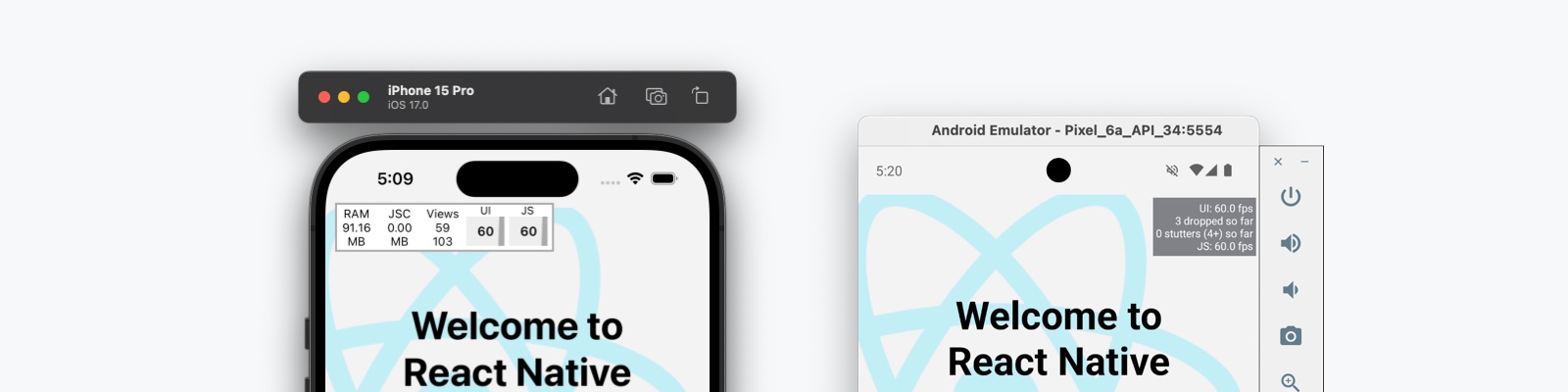
The Performance Monitor runs in-app and is a guide. We recommend investigating the native tooling under Android Studio and Xcode for accurate performance measurements.